Home » Video Tutorials » CAT4 and Cat5 Teacher Dashboard Videos

CAT4 and Cat5 Teacher Dashboard Videos

Get to know our CAT4/Cat5 Teacher dashboard and how it can help you view and track assessments, control and manage testing, and receive student reports. These videos will show you how to navigate the dashboard, customize assessments for students who require accommodations, and use the data from reports to inform instruction and support student progress.

  • 0:34
    How to edit a user account
    This video shows how to make changes to the user information in the Teacher Dashboard.
  • 0:57
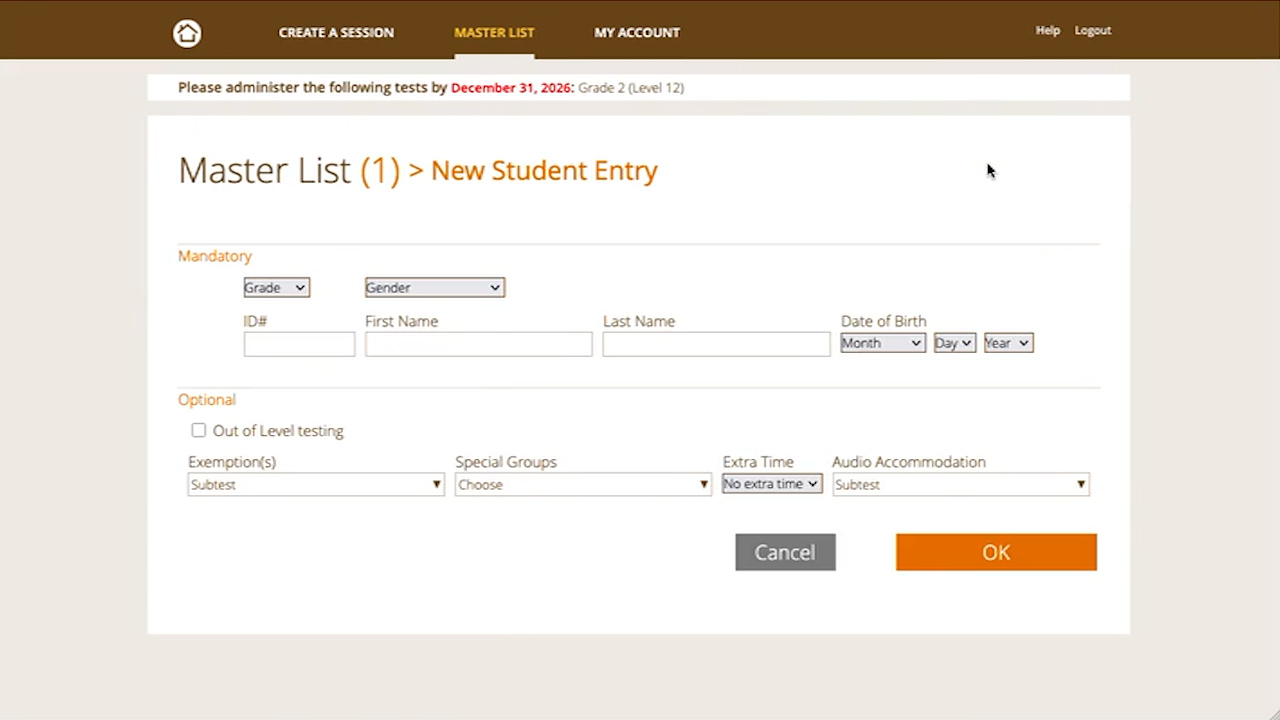
    How to add a new student
    This video shows how to add a new student to the Teacher Dashboard.
  • 1:43
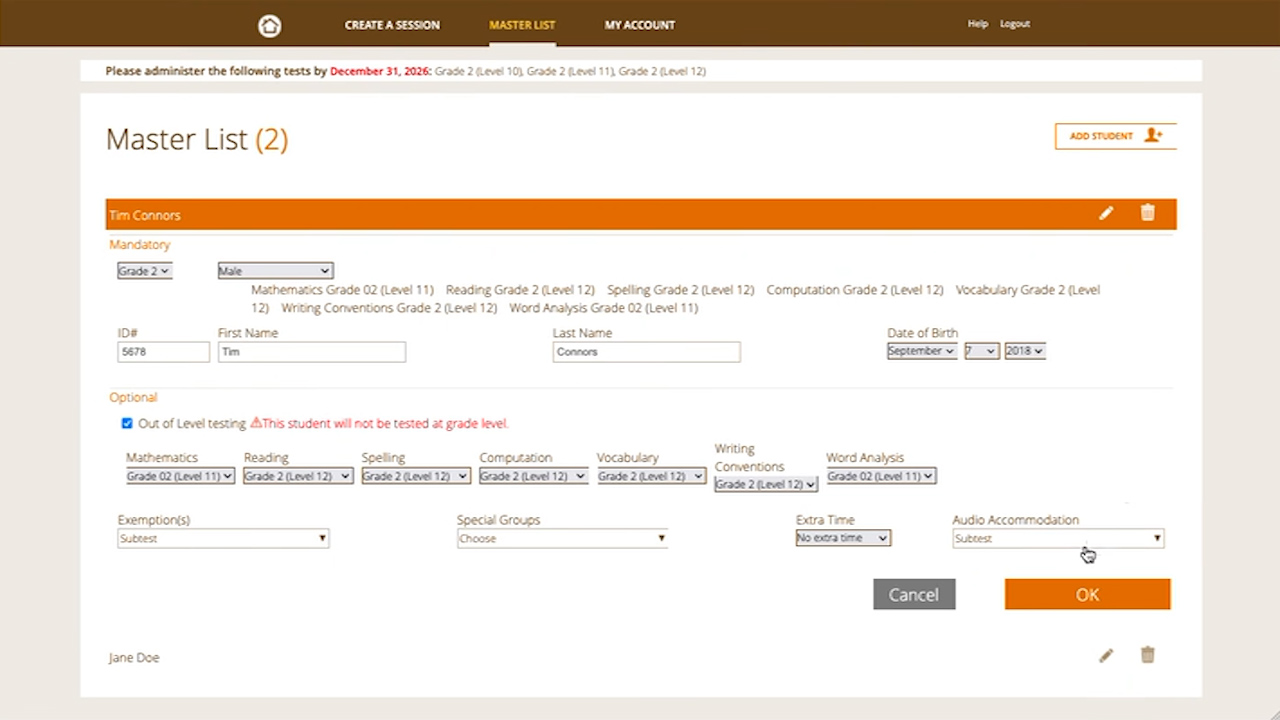
    How to add accommodations for a student
    This video shows how to add optional accommodations for students who require an accommodation for testing.
  • 1:14
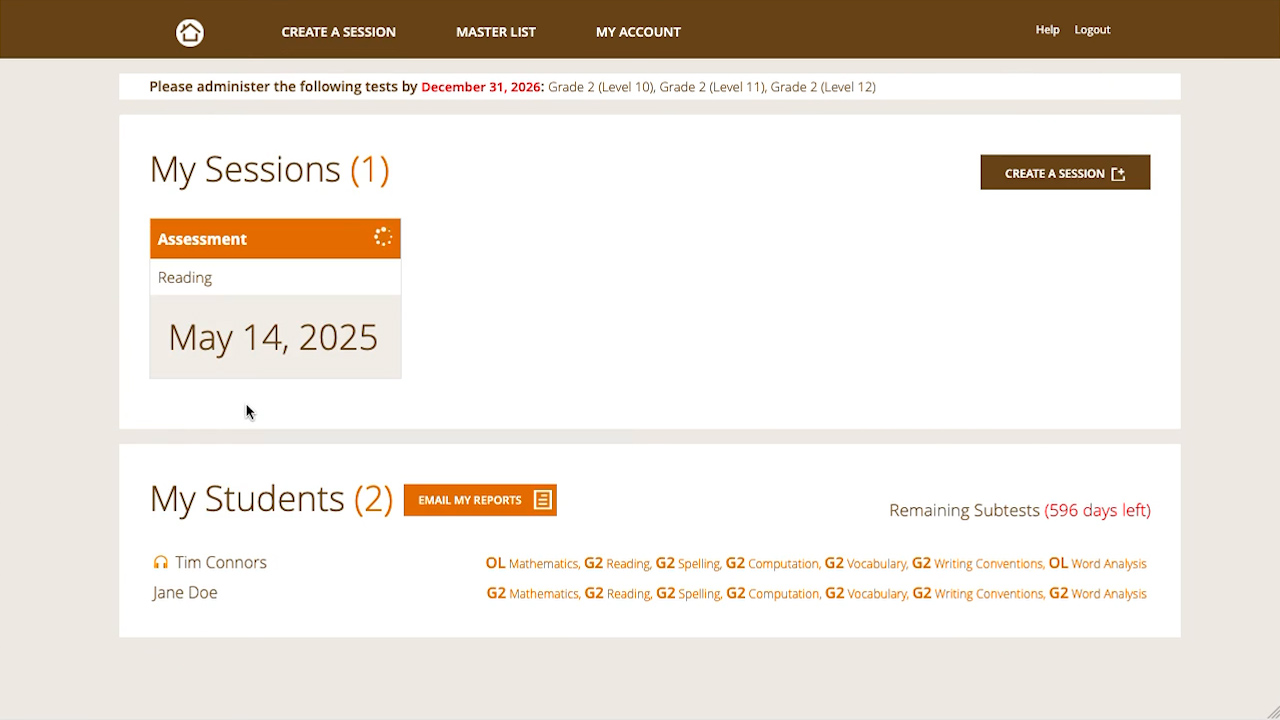
    How to create a test session
    How to create test a session
  • 0:43
    How to generate a new passcode
    This video shows how to generate a new passcode if the passcode is not working or if it has expired.
  • 1:23
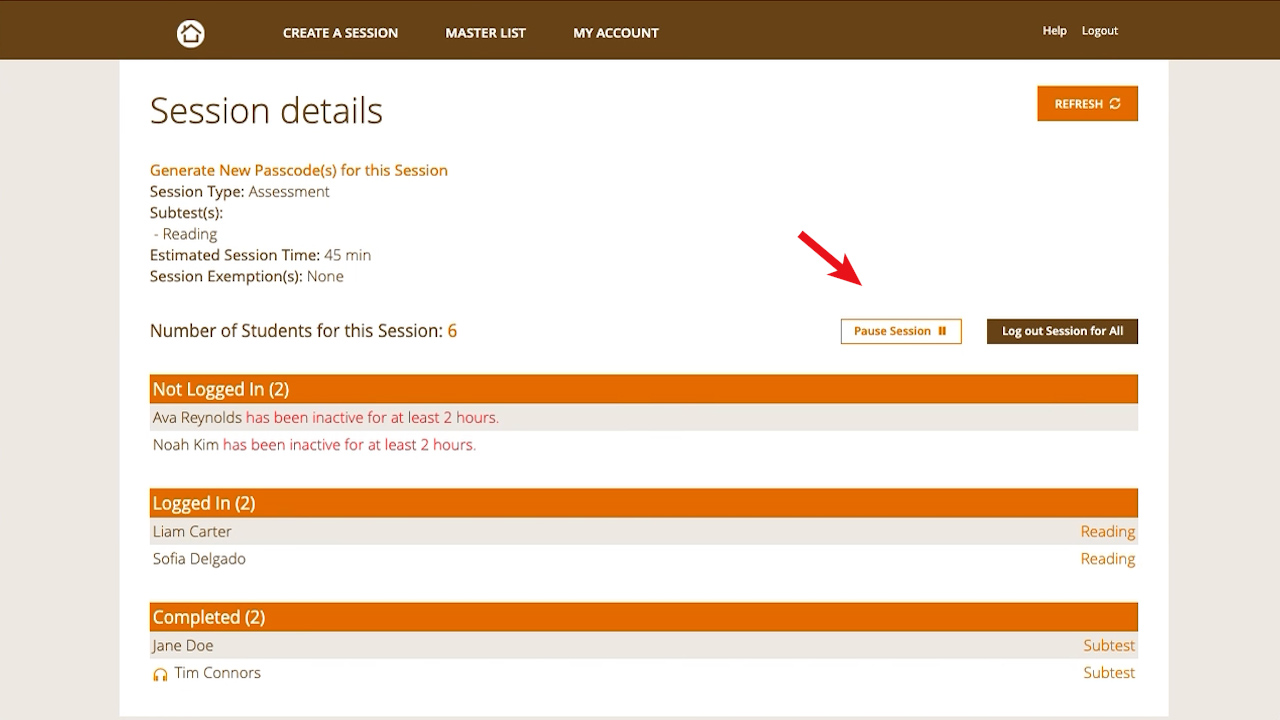
    How to pause and resume a test session
    This video shows how to pause and resume a test session in the middle of student testing. This function is intended for short breaks
  • 1:09
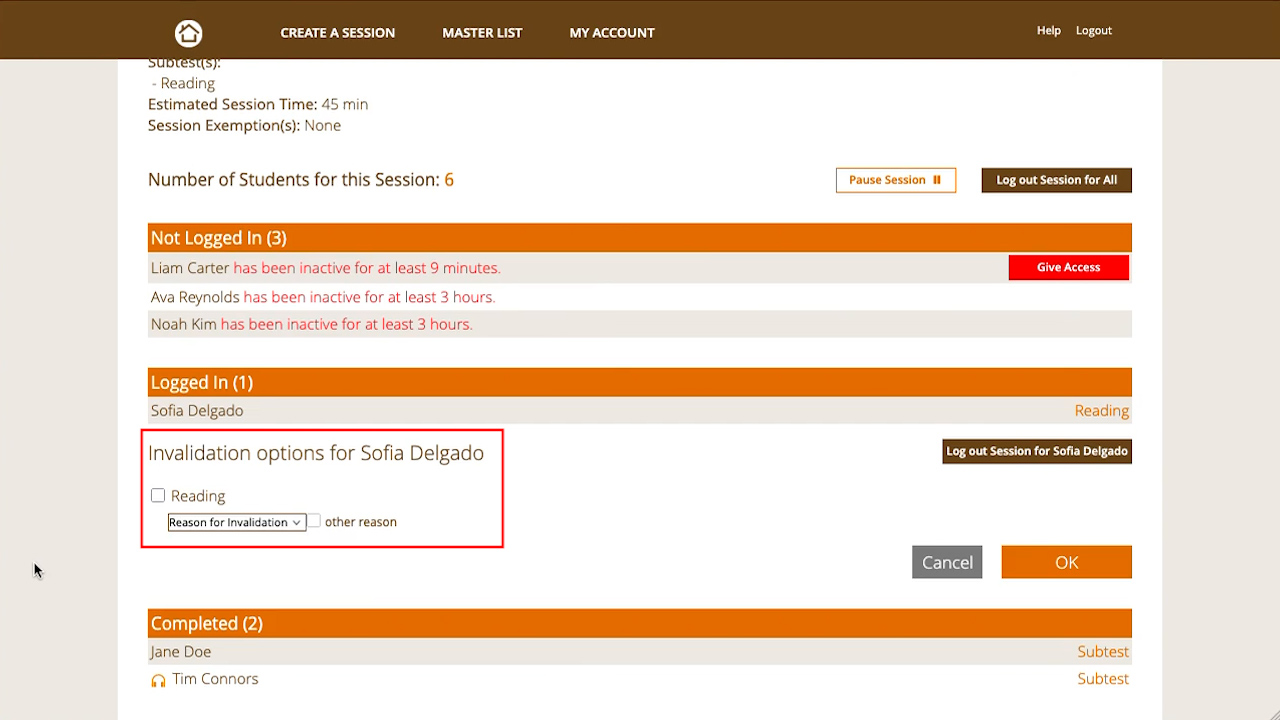
    How to log out an individual student
    This video shows how to log out one specific student who is currently taking the test but needs to exit the test interface.
  • 1:20
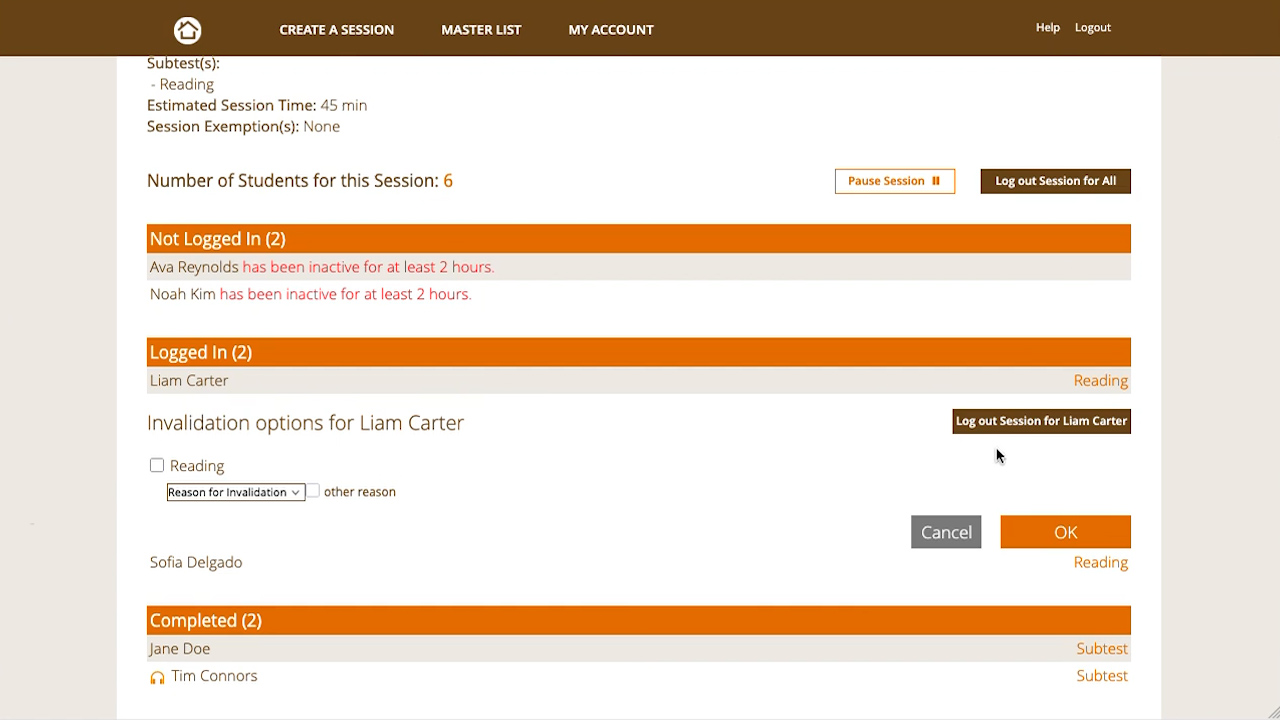
    How to invalidate a student’s score
    This video shows how to invalidate a student’s test score while they are taking the test and/or after they have completed the test.
  • 1:07
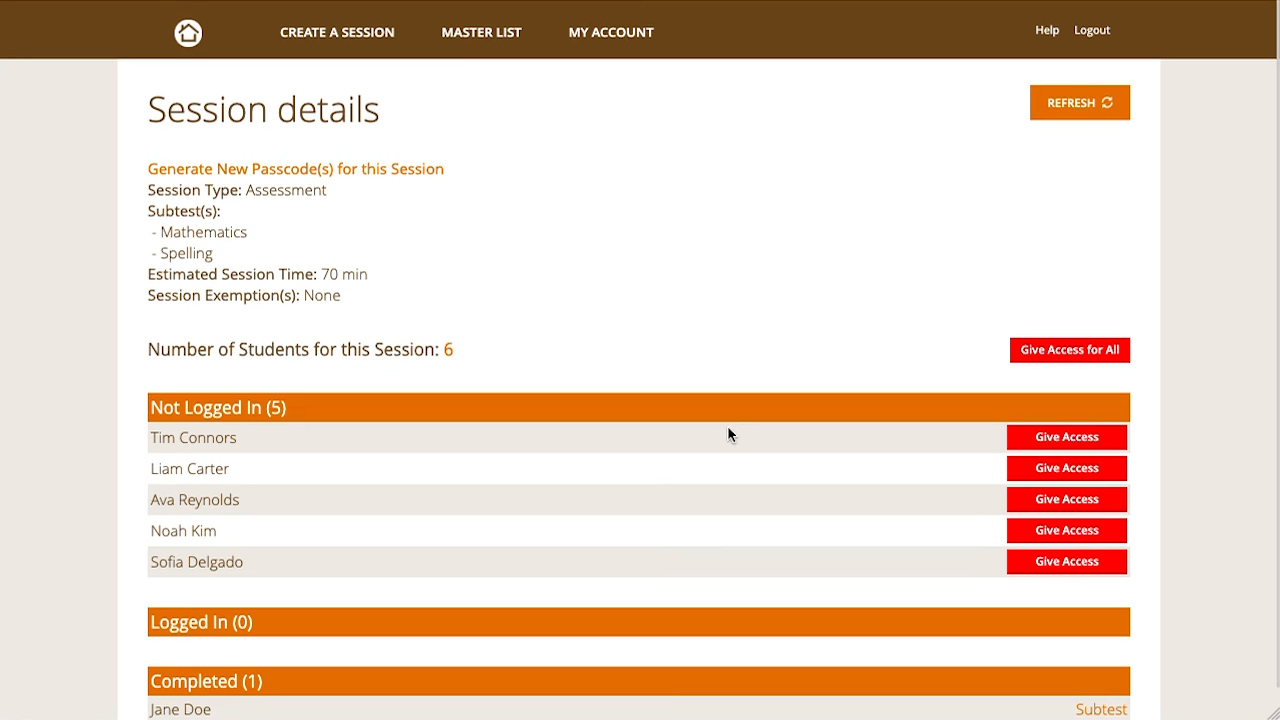
    How to log out all students
    This video shows how to log out all students logged into the test interface, and give them access when they return. This function is intended for longer breaks.
  • 0:42
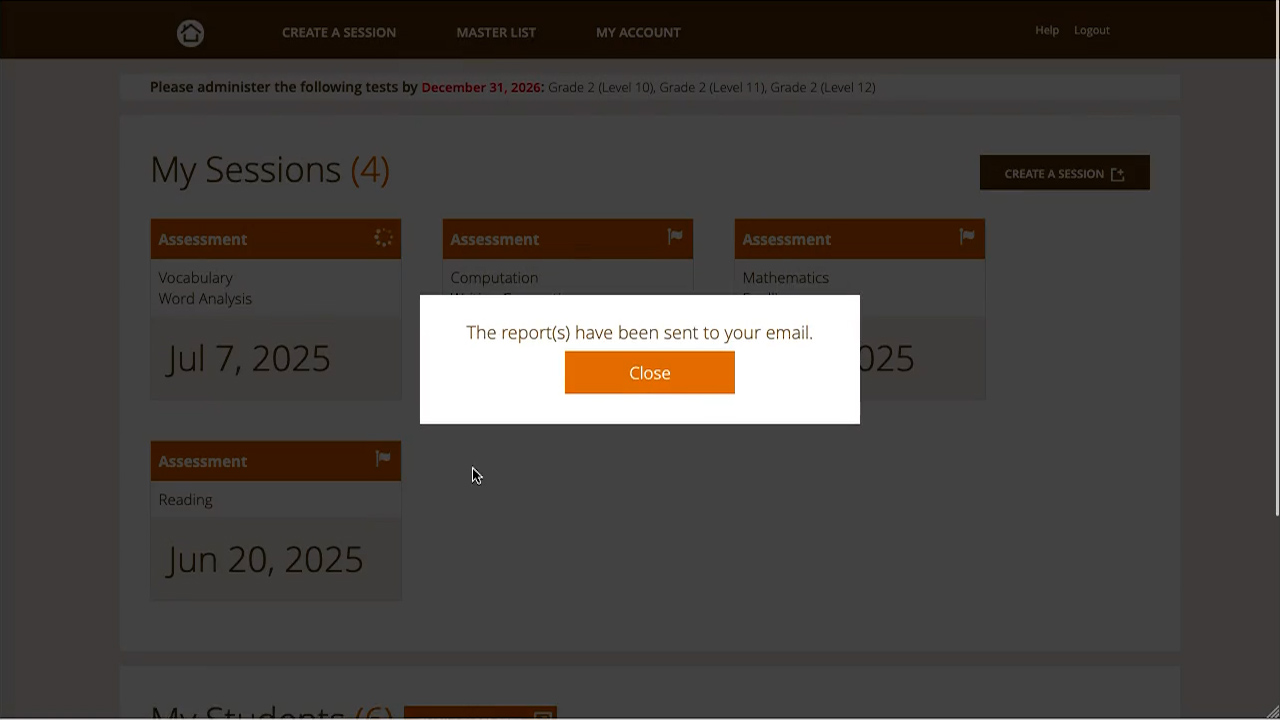
    How to access a system-generated report
    This video shows how the teacher can get access to the system-generated student reports.